

Email Client Configuration Guide
On this page, you will find all the necessary parameters and steps to configure your email inbox on major email programs (clients) such as Outlook and Thunderbird.
1. General Configuration Parameters
Use the following generic data for any software or smartphone. The use of secure connections (SSL/TLS) is recommended.
| Setting | Value to enter |
|---|---|
| Username / Account | Your complete email address (e.g. info@yourdomain.it) |
| Password | Your email account password |
| Incoming Mail Server (POP/IMAP) | mail.yourdomain.it |
| Outgoing Mail Server (SMTP) | mail.yourdomain.it |
Incoming and outgoing ports (Recommended with protection):
- IMAP (Recommended): Port 993 with SSL protection (keeps messages on the server).
- POP3: Port 995 with SSL protection (downloads messages to the PC).
- SMTP (Outgoing): Port 587 with STARTTLS (or TLS) protection and server authentication required enabled.
2. Configuration on Microsoft Outlook
- Open Outlook and go to File > Add Account.
- Enter your email address, select "Advanced options" and check "Let me set up my account manually".
- Choose between IMAP or POP.
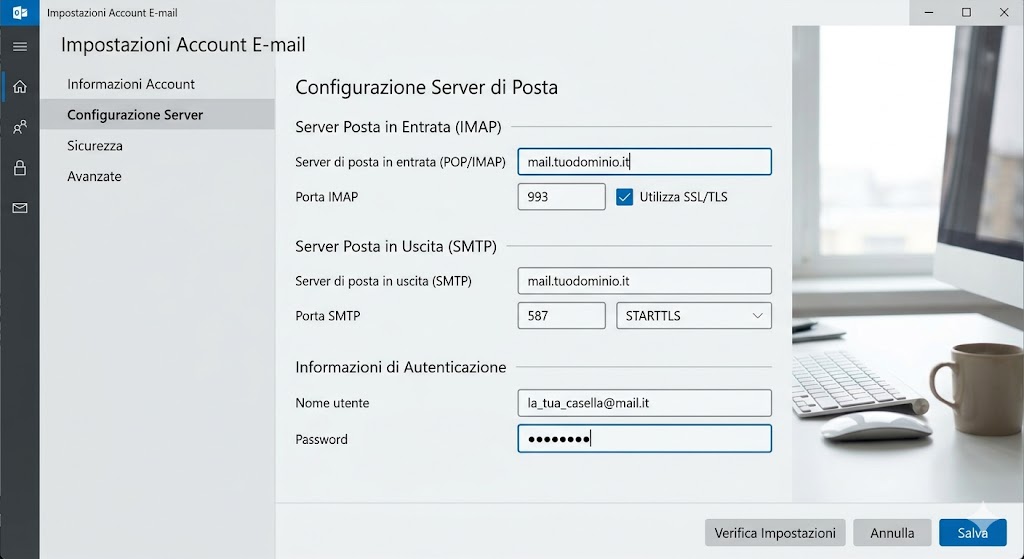
- Enter the parameters as shown in the image below, making sure to set the correct ports and encryption type.
3. Configuration on Mozilla Thunderbird
- Open Thunderbird and select Menu > New > Existing Email Account.
- Enter your name, email address, and password, then click Configure manually at the bottom left.
- Enter the servers
mail.yourdomain.itfor both incoming and outgoing mail. - Set the ports (993 for IMAP, 587 for SMTP) and corresponding protections (SSL/TLS and STARTTLS), then click Done.
Important Note: For the outgoing mail server (SMTP), it is always mandatory to check the box "The server requires authentication" and use the same credentials (username and password) as for incoming mail.
